
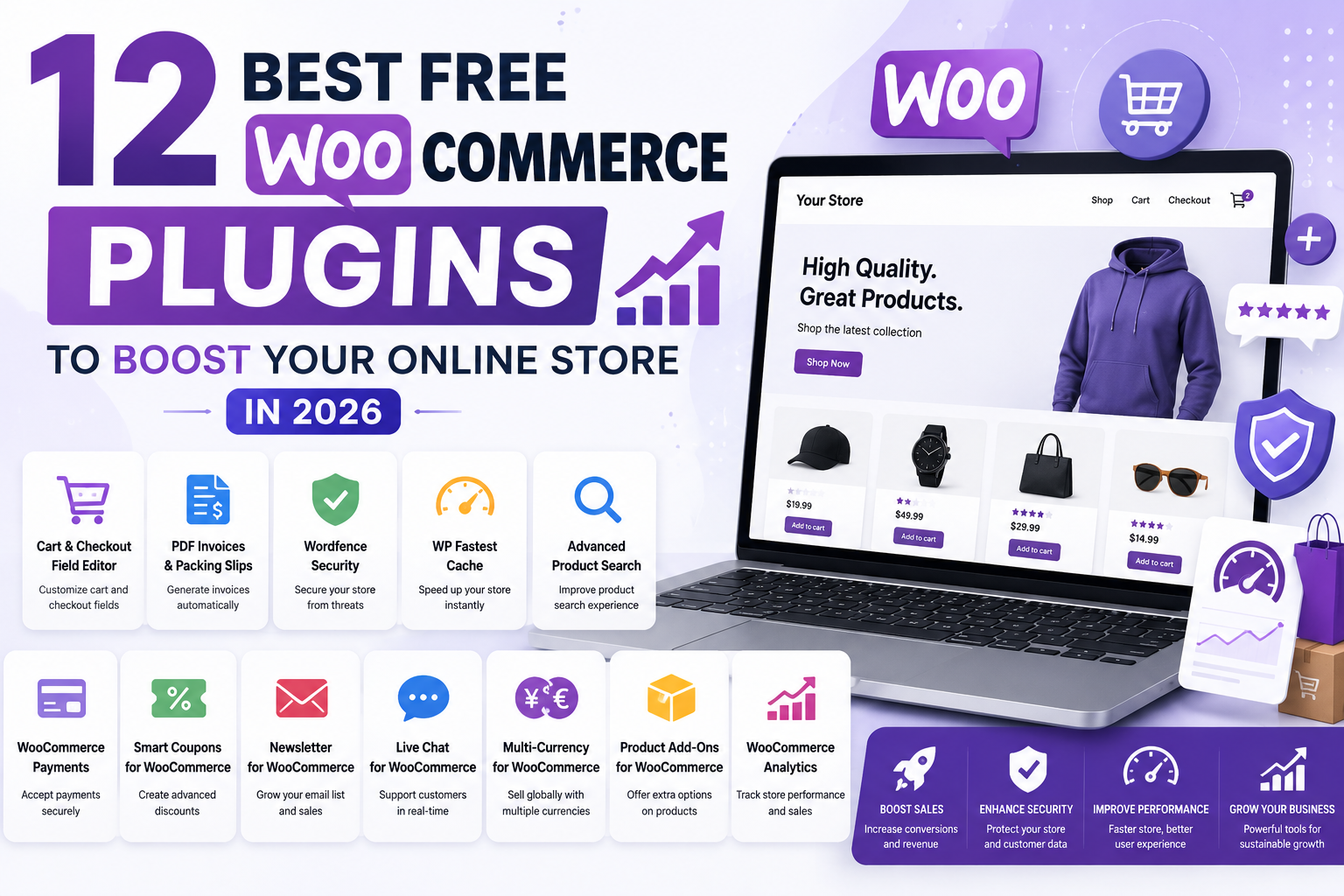
Most WooCommerce stores run on the default plugin stack and wonder why conversions stay flat. Free WooCommerce plugins fill specific gaps in your store, from email delivery to security to review collection, at no cost. This guide covers 12 plugins store owners across industries rely on to fix real problems and grow revenue.
What Makes a Free WooCommerce Plugin Worth Installing
The WordPress.org plugin directory lists over 59,000 plugins. The question is not which plugins exist but which ones belong on a live store. Three factors separate a useful plugin from a liability.
The plugin must target a specific store function. A plugin that claims to do everything usually does nothing well. Find tools built for a single job, such as caching, shipment tracking, or review collection.
The plugin must ship active updates. Open the Last Updated field on the plugin's WordPress.org listing before installing. A plugin that has not been updated in over 12 months carries real risk of breaking when WooCommerce releases a new version.
The free version must deliver functional value. Many plugins use their free tier as a preview of paid features. The best free WooCommerce extensions in this guide give you tools you can use from day one, not just a restricted demo.
12 Best Free WooCommerce Plugins for Your Store
The table below shows each plugin, its primary function, and its active install count from the WordPress.org plugin directory.

1. Yoast SEO
Yoast SEO audits every WooCommerce product page and category archive in real time inside the WordPress editor. It checks focus keyword placement, meta description length, internal link count, and readability score before you publish.
The plugin generates product schema markup automatically. Search engines then display product ratings, price ranges, and stock status in search results, which increases click-through rates without paid promotion.
The free tier covers one focus keyword per page, a custom meta description, XML sitemap generation, and Google Search Console verification. That feature set handles every SEO need a growing WooCommerce store has before it reaches 10,000 monthly visitors.
2. WPForms Lite
WPForms Lite builds contact forms, pre-sale inquiry forms, and post-purchase surveys through a drag-and-drop interface. Every form submission stores inside wp-admin, so no inquiry disappears into a spam folder.
The free version includes form templates, hCAPTCHA spam protection, and email notifications to any address you set. Store owners use it for custom order requests, wholesale inquiries, and feedback collection after delivery.
WPForms loads its scripts only on pages that contain a form. That conditional loading keeps your store's PageSpeed score clean, which matters for organic search ranking and store performance.
3. MonsterInsights Lite
MonsterInsights Lite connects your WooCommerce store to Google Analytics 4 and surfaces ecommerce data directly in your WordPress dashboard. You see top products, conversion rate, revenue by channel, and traffic trends from a single wp-admin screen.
The plugin fires the correct GA4 ecommerce events automatically. You do not need a developer or a custom data layer to track add-to-cart, checkout started, and purchase events. Setup takes about five minutes.
Do your product pages or blog posts drive more purchases? MonsterInsights answers that question without requiring you to dig through the GA4 reporting interface manually.
4. Customer Reviews for WooCommerce
Customer Reviews for WooCommerce automates the review request process after every order. The plugin sends a follow-up email to customers on a schedule you define, asking them to review their purchase, with an optional discount coupon as an incentive.
Product pages with at least 10 reviews convert at measurably higher rates than pages with no social proof. This plugin removes the manual effort of chasing feedback one customer at a time.
Reviews collected through the email system receive a verified buyer badge. That badge signals to future shoppers that the review comes from a confirmed purchase, not an unverified submission.
5. WooCommerce PDF Invoices and Packing Slips
WooCommerce PDF Invoices and Packing Slips attaches a formatted invoice to every order confirmation email automatically. Customers download their invoice from the My Account > Orders page at any time.
Tax-compliant invoicing is mandatory in most markets. This plugin supports logos, company address, tax registration numbers, and payment terms on every invoice. The free template editor handles all of these fields without writing code.
The plugin also generates packing slips for physical shipments. If your team prepares orders manually, the packing slip prints directly from the order edit screen inside wp-admin.
6. Advanced Coupons
Advanced Coupons extends WooCommerce's default coupon system with features the native tool does not include. You can build buy-one-get-one offers, URL-activated coupons, and cart-condition rules that apply discounts only when specific criteria are met.
A cart condition lets you trigger a coupon when the cart total passes a threshold, when specific product categories appear in the cart, or when a customer belongs to a defined user role. That targeting makes promotions more effective and reduces discount abuse.
Do you run bundle deals or seasonal promotions that require more logic than a flat percentage discount? Advanced Coupons gives you that control without writing custom code.
7. Advanced Shipment Tracking
Advanced Shipment Tracking connects WooCommerce orders to carrier tracking data and sends customers an automated notification when their shipment leaves your warehouse. The plugin supports over 300 carriers including USPS, FedEx, UPS, DHL, and regional carriers across Asia, Europe, and Latin America.
Post-purchase "where is my order?" emails account for a large share of customer service volume in most ecommerce stores. This plugin reduces that volume by sending a tracking link proactively the moment you mark an order as shipped.
You enter tracking numbers manually on the order edit screen or import them via CSV for bulk orders. The tracking email is fully customizable from Advanced Shipment Tracking > Settings > Email Template inside wp-admin.
8. Wordfence Security
Wordfence Security protects your WooCommerce store from brute-force login attacks, malware injections, and known WordPress exploit patterns. The plugin scans your files against official WordPress.org checksums and flags any file modified since installation.
A compromised store creates chargebacks, loses payment gateway standing, and damages search rankings. Wordfence blocks automated login attempts at the application layer before the attack reaches your database.
The free version includes the Web Application Firewall, malware scanner, login security, live traffic monitoring, and country blocking. Free users receive firewall rule updates 30 days after premium users receive them. That delay is a real factor worth knowing when you plan your security setup.
PRO TIP: After installing Wordfence, navigate to Wordfence > Tools > Live Traffic and filter by blocked requests. The first 24 hours often reveal dozens of automated login attempts that WordPress's default setup would have processed without interruption.
9. WP Fastest Cache
WP Fastest Cache reduces page load time by creating static HTML files from your dynamic WordPress pages. A cached page serves in milliseconds instead of the 300 to 500 milliseconds PHP takes to build a page from scratch on every request.
Page speed is both a Google ranking signal and a conversion factor. Google's Core Web Vitals data shows that pages reaching Largest Contentful Paint within 2.5 seconds retain substantially more visitors than slower pages.
The free tier covers page caching, browser caching, GZIP compression, and CSS and JavaScript minification. You must exclude your cart, checkout, and my-account pages from caching to prevent WooCommerce session data from being served incorrectly.
WARNING: Never activate WP Fastest Cache alongside WP Rocket, W3 Total Cache, or any other caching plugin. Two caching plugins running at the same time cause blank pages, redirect loops, and broken checkout behavior.
10. WP Mail SMTP
WP Mail SMTP reroutes WordPress's default PHP mail function through a dedicated SMTP server. That rerouting fixes the most common reason WooCommerce order confirmation emails land in spam rather than in the customer's inbox.
Order confirmations, shipping notifications, and password resets all depend on reliable email delivery. When those emails go to spam, customers open chargebacks, place duplicate orders, and leave negative reviews. WP Mail SMTP solves this in under five minutes.
The free version connects to SMTP.com, Mailgun, SendGrid, Gmail via OAuth, Outlook, and other major providers. After setup, use the WP Mail SMTP > Email Test tool to confirm inbox delivery before your next sale goes through.
11. Elementor Free
Elementor Free adds a drag-and-drop page builder to WordPress with 40 widgets available at no cost. Store owners use it to design custom homepages, product landing pages, promotional banners, and FAQ pages without writing CSS.
The free version supports WooCommerce widgets including Add to Cart buttons, product grids, and dynamic price displays. You can build a complete promotional landing page that pulls live product data directly from your WooCommerce catalog.
A well-designed storefront increases shopper confidence and reduces bounce rates on the homepage. Elementor's free tier is genuinely functional for a full store build. No premium upgrade is needed to produce a professional storefront.
12. YITH WooCommerce Wishlist
YITH WooCommerce Wishlist adds a save-for-later button to every product page. Customers collect products they plan to buy and can share their wishlist via a public link, which makes the plugin useful for gift registries and holiday shopping drives.
A wishlist is a purchase intent signal. When a customer adds a product to a wishlist but does not convert, the gap often points to a price, shipping cost, or product information problem. Wishlist data gives you conversion intelligence that page-view analytics alone cannot surface.
The free version includes the wishlist button on product pages, a customer wishlist management page, and a public shareable link. You access wishlist data from the YITH Wishlist panel in wp-admin.
How to Install Free WooCommerce Plugins
All 12 plugins in this list are available on the official WooCommerce-compatible plugin directory. Installation takes under two minutes per plugin.
Step 1. Go to Plugins > Add New Plugin in your WordPress dashboard.
Type the plugin name into the search field. When the correct result appears, verify the author name matches the official WordPress.org listing to avoid counterfeit plugins with similar names.
Step 2. Click Install Now, then click Activate.
WordPress downloads and activates the plugin files automatically. Most plugins in this list add a new menu item to wp-admin or a settings link under Plugins > Installed Plugins after activation.
Step 3. Open the plugin settings page and complete the initial setup.
Each plugin in this list ships a first-run setup screen or a settings panel that requires configuration. Running a plugin on default settings leaves most of its functionality inactive.
PRO TIP: Before installing any plugin on a live store, check its Last Updated date on the WordPress.org listing. A plugin that has not been updated in more than 12 months carries a real compatibility risk with the current version of WooCommerce.
Pairing the right plugins with a fast, WooCommerce-ready theme amplifies everything these tools deliver. The best free WooCommerce themes for WordPress covers the top options with Core Web Vitals performance data for each one.
Common WooCommerce Plugin Problems and How to Fix Them
Problem 1: New Plugin Causes a White Screen or 500 Error
Problem: Your storefront or wp-admin shows a blank white page or a 500 Internal Server Error immediately after activating a new plugin.
Cause: The newly installed plugin conflicts with another active plugin, or it requires a newer PHP version than your server runs.
Fix:
- Connect to your site via FTP or your hosting control panel's File Manager.
- Navigate to wp-content/plugins/.
- Rename the newly activated plugin's folder by adding -disabled to the end.
- Reload your site. If it loads normally, the renamed plugin caused the conflict.
- Check your PHP version under Tools > Site Health > Info > Server inside wp-admin.
- Open a support thread on the plugin's WordPress.org page and include your PHP error log from your hosting dashboard.
Problem 2: WooCommerce Order Emails Stop Delivering After WP Mail SMTP Setup
Problem: Customers report receiving no order confirmation email after a purchase, following a WP Mail SMTP installation.
Cause: The SMTP credentials were entered incorrectly, or the connected email account requires an app password rather than its standard login password.
Fix:
- Navigate to WP Mail SMTP > Settings > Email Test.
- Send a test email to a personal inbox and read the result message for any error code.
- For Gmail, go to Google Account > Security > App Passwords and generate a dedicated app password for WP Mail SMTP.
- Replace the standard password in WP Mail SMTP settings with the app password.
- Run the email test again and confirm inbox delivery before your next live order.
Problem 3: WP Fastest Cache Breaks the Cart Page
Problem: After enabling WP Fastest Cache, adding a product to the cart displays an empty cart, or the cart resets on every page load.
Cause: WP Fastest Cache is caching the cart and checkout pages, which prevents WooCommerce's session data from loading correctly per visitor.
Fix:
- Go to WP Fastest Cache > Exclude in your WordPress dashboard.
- Add the cart page URL, checkout page URL, and my-account page URL to the exclusion list.
- Click Delete Cache > Clear All Cache from the WP Fastest Cache menu.
- Add a product to the cart from the front end and proceed to checkout to confirm the fix.
Frequently Asked Questions About Free WooCommerce Plugins
Q: How many plugins can I run on a WooCommerce store without hurting performance?
A: Most well-optimized WooCommerce stores run between 10 and 25 plugins without a meaningful performance penalty. The number matters less than the code quality. Plugins that load scripts on every page regardless of context cause more harm than plugins that load conditionally. Audit active plugins quarterly and deactivate anything you no longer use.
Q: Are free WordPress ecommerce plugins safe to install?
A: Plugins hosted on the WordPress.org plugin directory pass a manual code review before they are listed. That review checks for obvious malicious code but does not guarantee perfect security. Plugins with high active install counts, recent update histories, and active support forums carry lower risk than obscure plugins with few installs and no recent activity.
Q: Can installing too many free WooCommerce add-ons slow my store?
A: Yes. Every active plugin adds PHP code that executes on page load. Plugins most likely to slow your store are those that add multiple database queries, load external scripts on every page, or run background processes on every request. Test your store with Google PageSpeed Insights before and after each plugin installation. WPForms Lite and YITH WooCommerce Wishlist are among the lightest plugins in this list.
Q: Do I need to upgrade any of these free WooCommerce plugins to a paid version?
A: None of the 12 plugins in this guide require a paid upgrade to perform their core function. The free versions of Yoast SEO, WPForms, MonsterInsights, and Wordfence serve stores at most revenue levels. Upgrade only when you reach a specific limitation that is actively costing you money. For example, Yoast Premium earns its cost when you need to target multiple focus keywords per product page.
Q: Which free WooCommerce plugin has the fastest visible impact on store performance?
A: WP Mail SMTP has the fastest impact for stores whose transactional emails land in spam. Reliable inbox delivery for order confirmations and shipping notifications reduces chargebacks and duplicate order requests immediately. After WP Mail SMTP, Customer Reviews for WooCommerce delivers the next fastest measurable lift by automating review collection, which raises product page conversion rates as reviews accumulate.
Q: Do these plugins work with WooCommerce 9.x?
A: All 12 plugins in this guide show active WooCommerce 8.x and 9.x compatibility on their WordPress.org listings as of mid-2026. Always check the Tested up to field on each plugin's listing before installing on a live store. Test new plugins on a staging environment before pushing them to production.
First Plugins to Install, and What to Add Next
Start with WP Mail SMTP before anything else. Email delivery is infrastructure, not a feature. A store that sends unreliable transactional emails loses customers at every stage of the purchase process.
Add Wordfence Security and Yoast SEO before your store goes public. Security vulnerabilities are easier to prevent than to recover from, and search visibility compounds over time when it starts early. Each of the remaining 9 plugins addresses a specific growth constraint you can tackle one at a time.
For store owners who want to extend plugin behavior with code, the guide on how to customize WordPress plugins without breaking your site covers safe customization methods using hooks and filters instead of editing plugin files directly.
Have a free WooCommerce plugin running in your store that did not make this list? Leave the name and your specific use case in the comments. Real examples from working stores help every reader make better plugin decisions.
Comments (0)