
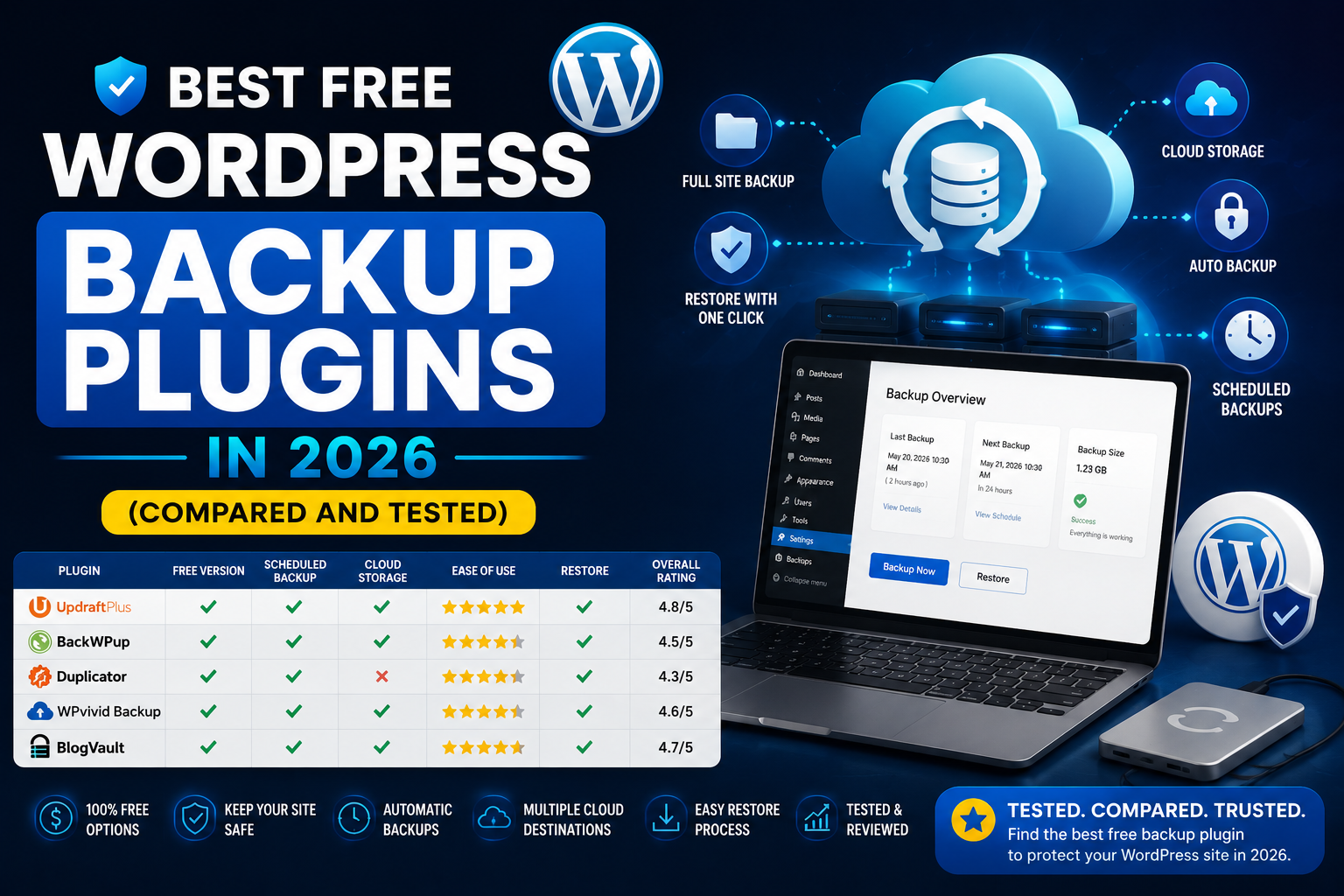
Most WordPress site owners install a backup plugin once, forget about it, and assume they are covered. Not every free plugin backs up your database, supports off-site storage, or allows dashboard restores without payment. This comparison covers six free WordPress backup plugins for 2026 and helps you choose the right one before a real crisis hits.
What WordPress Backups Actually Protect
A WordPress backup captures two distinct things: your database and your files. The database holds your posts, pages, WooCommerce orders, customer records, comments, and all plugin settings. Your files include your active theme, every installed plugin, your media uploads, and the WordPress core code.
Losing one without the other produces a broken restore. A plugin that backs up only your database cannot recover your uploaded product images or active theme templates.
WooCommerce stores face a harder challenge than static blogs. Every new order, stock update, customer registration, and cart abandonment record writes to your database. A daily backup taken at midnight could mean losing an entire day of transactions if your site fails at 11:59 PM.
What to Look for in a Free Backup Plugin
Not all free tiers deliver the same protection. These four features separate useful free backup plugins from ones that leave dangerous gaps in your site's safety net.
Full-site coverage means the plugin backs up both your database and your files. Database-only tools miss all themes, media uploads, and plugin code that lives outside the database.
Off-site storage support sends backup files to a location separate from your hosting server. If your server fails, gets hacked, or your hosting account gets suspended, backups sitting on that same server disappear with it. Look for free plugins that push copies to Google Drive, Dropbox, or Amazon S3 automatically.
Dashboard restore capability lets you run a full recovery from inside your WordPress admin without needing FTP access or a separate installer script. Some free plugins require manual archive downloads and re-uploads. A dashboard restore cuts recovery time from hours to minutes.
Scheduled automation removes the human variable. Manual backups get skipped during busy periods. Look for free plugins that run daily or weekly backups on their own without you triggering each one.
PRO TIP: Apply the 3-2-1 rule to your WordPress backup strategy. Keep three total copies of every backup: two stored across different locations or services, and one copy kept completely separate from your hosting provider. This rule covers hosting outages, accidental deletion, and ransomware scenarios at the same time.
Best Free WordPress Backup Plugins at a Glance
• UpdraftPlus
- Scheduled Backups: Yes
- Free Cloud Storage: Google Drive, Dropbox, S3
- Dashboard Restore: Yes
- Multisite (Free): No
• BackWPup
- Scheduled Backups: Yes
- Free Cloud Storage: Dropbox, S3, Azure
- Dashboard Restore: Manual only
- Multisite (Free): Yes
• WPvivid
- Scheduled Backups: Yes
- Free Cloud Storage: Google Drive, Dropbox
- Dashboard Restore: Yes
- Multisite (Free): No
• Duplicator
- Scheduled Backups: No
- Free Cloud Storage: Local only
- Dashboard Restore: Manual only
- Multisite (Free): No
• Backuply
- Scheduled Backups: Yes
- Free Cloud Storage: Google Drive, FTP
- Dashboard Restore: Yes
- Multisite (Free): No
• Total Upkeep
- Scheduled Backups: Yes
- Free Cloud Storage: Local only
- Dashboard Restore: Yes
- Multisite (Free): No
Six Best Free WordPress Backup Plugins for 2026
1. UpdraftPlus: Best Overall Free Backup Plugin

UpdraftPlus holds more than 3 million active installs on WordPress.org and more five-star reviews than any other backup plugin in the directory. The free version delivers full-site backups, automated scheduling, multiple cloud storage destinations, and one-click dashboard restoration.
You can route backups to Dropbox, Google Drive, Amazon S3, Rackspace Cloud, DreamObjects, FTP, or email without paying anything. Most competing plugins lock cloud storage behind a paid upgrade.
The free tier packages your database, plugins, themes, uploads, and core files as separate archives. You can restore only your database when a plugin breaks something, leaving your files untouched. This matters for WooCommerce stores where a full-site restore would overwrite existing orders that arrived after the backup ran.
Key free features:
- Scheduled daily, weekly, or monthly backup automation
- Remote storage to Dropbox, Google Drive, Amazon S3, and more
- One-click restore from the WordPress admin dashboard
- Password-protected backup archives
- Separate file and database archives for selective restores
Limitation to know: The free version runs full backups every time. It does not support incremental backups, where only changed data gets saved. For WooCommerce sites with large product catalogs and media libraries, full daily backups can be slow and storage-heavy. Incremental backup support requires UpdraftPlus Premium, starting at $84 per year.
Best for: Small to medium WordPress sites and WooCommerce stores that need reliable daily backups with cloud storage at no cost.
2. BackWPup: Best Free Backup Plugin for Multisite Networks

BackWPup is one of the few free backup plugins with native WordPress Multisite support. If you manage a network of sites under a single installation, BackWPup gives you network-level backup scheduling without any paid plan.
The free version connects to Dropbox, Amazon S3, Amazon Glacier, Microsoft Azure, and Rackspace. You can also set up multiple backup jobs to run at different intervals, pairing daily database backups with weekly file backups as two separate automated tasks.
The main limitation compared to UpdraftPlus is the restore process. You download the backup archive manually and restore it through your hosting file manager or FTP client. There is no dashboard restore wizard in the free version.
Key free features:
- Separate scheduled jobs for database and file backups
- Cloud storage to Dropbox, S3, Azure, and Glacier included free
- Native WordPress Multisite network support
- Email delivery of backup job completion logs
- Multiple job intervals for granular scheduling control
Limitation to know: Manual restoration requires FTP access or cPanel file manager confidence. New WordPress users without technical experience may need help completing a restore.
Best for: WordPress Multisite administrators and technically confident site owners who want flexible scheduled backup job setups without a paid plan.
3. WPvivid: Best Free Plugin for One-Click Restore

WPvivid delivers scheduled backups, free cloud storage, one-click restore, and basic migration capability in its free version. It connects to Google Drive, Dropbox, Amazon S3, Microsoft OneDrive, and SFTP without any paid upgrade.
The restore process runs directly from your WordPress admin and handles both files and database in a single action. This makes WPvivid one of the more accessible free options for site owners who want fast recovery without technical steps.
One limitation in the free tier: you cannot back up specific components separately. WPvivid free runs full-site backups only, so you cannot restore just your database while leaving your files untouched.
Key free features:
- Scheduled full-site backup automation
- Multiple cloud storage destinations included free
- One-click full restore from the WordPress dashboard
- Basic site migration between hosting environments
- Staging site creation capability
Limitation to know: No granular restore on the free plan. Full-site-only backups mean longer restore times for WooCommerce stores with large media libraries.
Best for: WordPress site owners who want a clean, one-click restore experience without a premium plan.
4. Duplicator: Best Free Tool for Site Migrations

Duplicator packages your entire WordPress site into a portable archive paired with a standalone installer file. Its primary strength is migrations: moving a site from a local development environment to a live server, or creating a staging clone from your production site.
The free version runs manual backups only. You trigger each package from the Duplicator panel in your WordPress admin. No automated schedules run on the free tier.
Free packages save locally only. You download the archive and installer to your computer and upload them to a new server to complete a migration or restore. Cloud storage requires Duplicator Pro, starting at $69.30 per year.
Key free features:
- Full-site packaging with a standalone installer script
- Manual backup and migration workflow
- Database-only or full-site archive options
- Localhost-to-live-server migration capability
Limitation to know: No scheduling and no cloud storage on the free plan. Duplicator works as a reliable manual backup and migration tool, not as an automated set-and-forget protection solution.
Best for: Developers and designers who regularly move WordPress sites between environments and need a dependable free migration workflow.
5. Backuply: Best Free Plugin for Beginners

Backuply offers one of the cleanest interfaces of any free WordPress backup plugin. From the Backuply panel inside your WordPress admin, you can set up an automatic backup schedule in under three minutes. Restoring from a backup requires a single button press from the same panel.
The free version supports local backups, FTP storage, and Google Drive without any payment. Paid plans, starting at $18 per year, add Amazon S3, OneDrive, SFTP, and automatic backup rotation.
The main gap in the free tier: no automatic rotation of old backup sets. Backuply free does not delete older backups to make room for new ones. You review and remove outdated sets from the plugin panel manually as storage fills up.
Key free features:
- Scheduled automatic backup runs
- Google Drive, FTP, and local storage included free
- One-click restoration from the WordPress admin panel
- Direct site-to-site migration
- Beginner-friendly dashboard layout
Limitation to know: No automatic backup rotation on the free plan. You manage your storage space manually over time as new backup sets accumulate.
Best for: WordPress beginners and small site owners who want a fast backup setup without reading documentation.
6. Total Upkeep by BoldGrid: Best Free Plugin for Pre-Update Protection

Total Upkeep includes a feature most other free backup plugins skip: automatic backups triggered before any WordPress core, theme, or plugin update runs. The plugin detects an incoming update and creates a restore point before the process begins.
For WooCommerce stores with active catalogs and many installed plugins, this is a meaningful line of defense. A broken plugin update can take WooCommerce checkout offline or corrupt your product database. A pre-update backup means you roll back to a working state in minutes rather than relying on a scheduled backup from hours earlier.
The free version stores backups on your local server only. Remote storage to Amazon S3 or Google Drive requires the premium plan. This is the biggest limitation compared to UpdraftPlus or WPvivid on the storage front.
Key free features:
- Scheduled automatic backup runs
- Pre-update backup creation before each WordPress and plugin update
- Site migration tooling
- Basic website monitoring
- Local server backup storage
Limitation to know: No free cloud or remote storage. Local backups disappear if a hosting-level failure is the cause of your problem.
Best for: WooCommerce stores and plugin-heavy WordPress sites that want automatic pre-update rollback protection without a paid plan.
Choosing the Right Plugin for Your Site
Do you manage a WooCommerce store with daily orders? UpdraftPlus free delivers daily scheduled backups to Google Drive or Dropbox at no cost. On a daily schedule, you limit your data loss window to 24 hours maximum.
Do you run a WordPress Multisite installation? BackWPup is the only free option on this list with native Multisite support. Every other plugin here requires a paid plan for network-level backup coverage.
Are you a developer who moves WordPress sites between environments regularly? Duplicator free handles migrations better than any backup plugin on this list. Pair it with UpdraftPlus for automated background protection alongside your manual migration workflow.
Do you want the cleanest setup with minimal configuration? Backuply and WPvivid both deliver one-click restores from a straightforward admin panel. If you also modify plugins directly on your active site, read the complete guide to customizing WordPress plugins without breaking your site to build a safe change management process alongside your backup routine.
Pro Backup Strategies Most WordPress Site Owners Ignore
Test your restore before an emergency forces the issue. Most WordPress users never confirm that their backup files actually restore correctly until their site breaks. Run a full test restore on a staging environment once per month and verify that the site loads cleanly, WooCommerce functions as expected, and all product images appear after the restore completes.
Back up manually before every major update session. WordPress core upgrades, WooCommerce version releases, and major plugin updates all carry the risk of breaking something on your active site. Total Upkeep automates this step for you. If you run a different plugin, trigger a manual full backup before any update session and confirm it completes successfully before clicking Update.
Separate your database backup schedule from your file backup schedule. Your database changes every time a visitor places an order, leaves a comment, or updates their account. Your plugin and theme files change only when you install or update something. BackWPup lets you run daily database backups as one scheduled job and weekly file backups as a second, separate job. This approach cuts storage consumption without reducing protection on the data that changes most often.
Verify your cloud storage connection every month. Google Drive and Dropbox OAuth tokens linked to your backup plugin can expire without triggering a visible warning. Open your plugin settings once a month and check the storage status. Reconnect the token if the connection shows a red icon or an error status before your next scheduled backup runs.
You can also check the WordPress plugins section on SimplyFreeCode if you need premium backup tools with hourly scheduling, real-time WooCommerce order capture, or built-in malware scanning for larger stores.
Common WordPress Backup Problems and How to Fix Them
Problem 1: Backup Reports Success but the Restore Fails
Problem: Your backup plugin logs a completed backup, but the restore process hangs, throws a database error, or produces a blank white site.
Cause: The backup archive contains a corrupted database table dump, or the server's PHP execution time limit cut off the backup job partway through without reporting a visible error.
Fix:
Step 1. Open your plugin settings and locate the Backup Log or Last Backup Report entry.
Step 2. Look for warnings referencing execution time limits, max packet size, or incomplete database tables.
Step 3. Set your PHP max_execution_time to 300 and max_input_time to 300 in your php.ini file or inside your hosting control panel.
Step 4. Delete the failed backup set and run a fresh full backup immediately.
Step 5. Test the new backup on a staging site before trusting it for a production restore.
Problem 2: Google Drive Fills Up and Scheduled Backups Stop
Problem: Backups stop completing and your plugin log shows a Google Drive storage quota error.
Cause: The plugin has stored enough backup sets to fill the 15 GB Google Drive free tier. Most free backup plugins do not auto-delete older sets to free up space.
Fix:
Step 1. Open Google Drive and navigate to the folder your backup plugin created.
Step 2. Delete backup sets older than your desired retention window. Keep three to five recent sets as your minimum.
Step 3. Return to your plugin settings and enable automatic backup rotation if your current plan supports it.
Step 4. If auto-rotation sits behind a paid upgrade, set a recurring monthly calendar reminder to manually clear older sets before the quota fills again.
Problem 3: Backup Completes but the Uploads Folder Is Empty on Restore
Problem: After restoring, your wp-content/uploads folder contains no files or only a fraction of your media library.
Cause: Large upload directories often exceed server memory limits or file compression maximums during the backup job. The plugin logs a success but silently skips or partially archives the uploads directory.
Fix:
Step 1. Open your plugin settings and check the File Exclusion or Advanced tab for any uploads directory exclusion rule.
Step 2. Set your server memory_limit to at least 256 MB inside wp-config.php or php.ini.
Step 3. For UpdraftPlus, enable the Split backup file option under Settings > Expert / Debugging Settings to break large directories into smaller archive chunks.
Step 4. Run a new full backup and confirm the uploads directory appears as a separate archive file in the backup file list before closing the panel.
WARNING: Never store your only backup copy on the same server as your live WordPress site. A server breach, a host-level failure, or an accidental account termination removes your live site and all local backup files at exactly the same time.
Frequently Asked Questions About Free WordPress Backup Plugins
Q: What is the best free WordPress backup plugin in 2026?
A: UpdraftPlus is the most widely deployed free WordPress backup plugin, with over 3 million active installs on WordPress.org. Its free tier includes full-site backups, scheduled automation, Google Drive and Dropbox storage, and one-click dashboard restoration. For most WordPress sites and WooCommerce stores, UpdraftPlus free provides complete backup coverage without any payment.
Q: How often should I back up my WordPress site?
A: Static content sites with infrequent updates can rely on weekly backups. WooCommerce stores and membership sites with daily transactions need daily database backups at minimum. If your store processes more than 20 orders per day, hourly or real-time backup capability becomes worth the investment in a premium plan to avoid losing transaction data between runs.
Q: Can I run two WordPress backup plugins at the same time?
A: Running two backup plugins simultaneously creates competing wp-cron jobs, duplicate database processes, and potential restore conflicts. Choose one plugin, configure it correctly, and test it on a staging site. A single working backup plugin delivers more reliable protection than two that interfere with each other.
Q: Is my hosting provider's backup enough to protect my WordPress site?
A: Hosting backups serve as a second line of defense, not a complete solution. Server-level snapshots run daily on most hosts, and restoring from one typically takes hours. Plugin backups let you restore only your database, specific tables, or files from your dashboard in minutes.
Q: Do free WordPress backup plugins slow down my site during a backup run?
A: Server-side backup plugins consume CPU and memory while running. Most plugins let you schedule backup jobs during your site's lowest-traffic hours. Setting your backup to run at 3:00 AM or your equivalent off-peak window eliminates any noticeable visitor impact during the process.
Q: What happens when my backup plugin's cloud storage token expires?
A: If your Google Drive or Dropbox OAuth token disconnects, scheduled backups continue triggering but fail silently or fall back to local storage. Your plugin's Last Backup report will show a red error or a missed backup date. Check your storage connection status monthly and reconnect the token if you see an error before the next scheduled run.
Start Protecting Your Site Before the Next Update
The best free WordPress backup plugin for your site is the one you actually have configured and tested. Pick one from this list and install it today. Run your first manual backup before your next WordPress or WooCommerce update runs.
UpdraftPlus free covers most sites without complex configuration. BackWPup handles Multisite networks at no cost. Total Upkeep automates pre-update snapshots without a paid plan.
The most dangerous backup setup is the one you keep planning to build. A ten-minute plugin install today prevents hours of data recovery work after a failed update or a bad plugin conflict. Got a question about any of these plugins, or a backup issue you have run into on your own site? Drop it in the comments below.
Comments (0)