
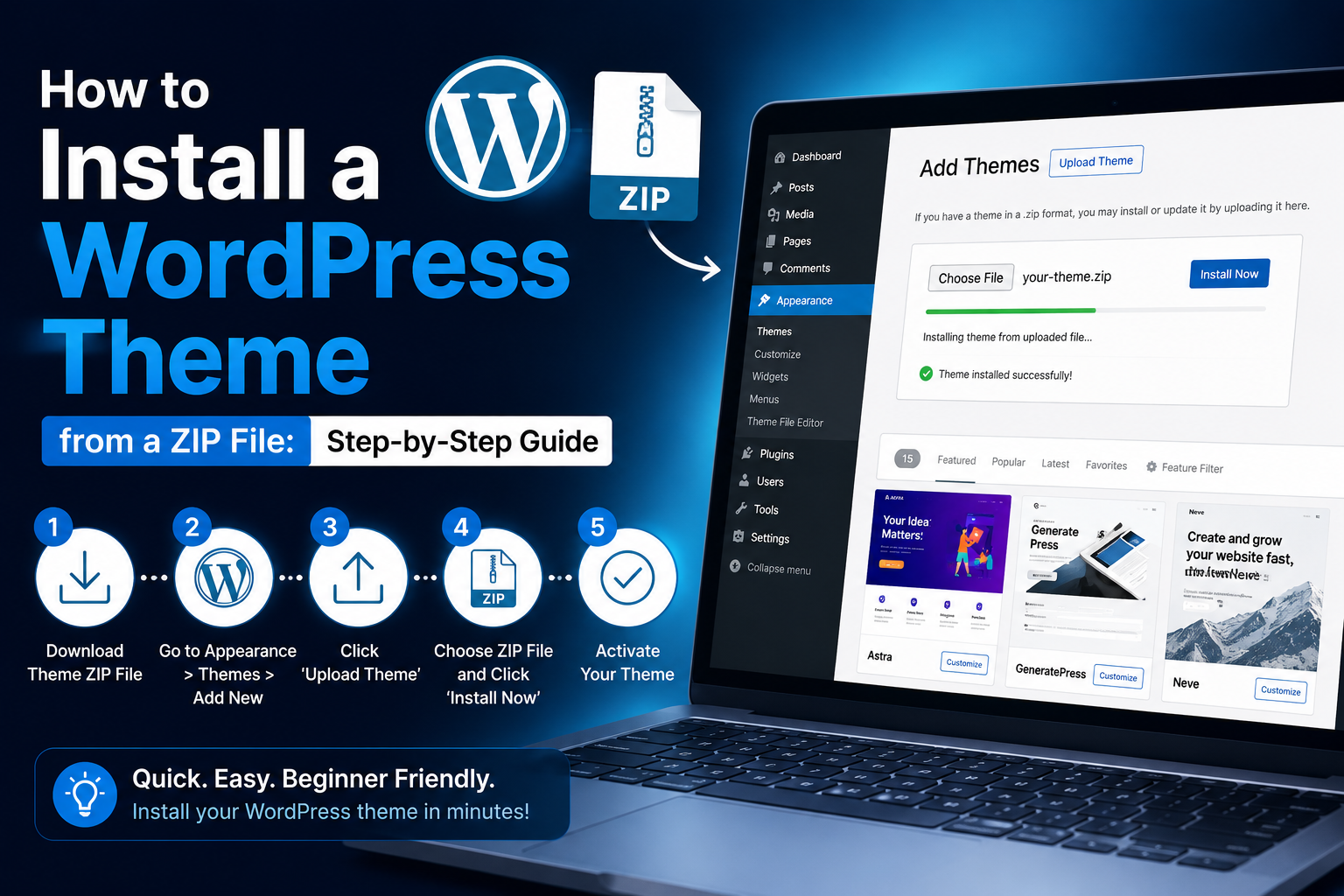
Most WordPress users upload a theme ZIP without checking what's inside first. That oversight is exactly why so many installs fail with cryptic error messages and no obvious cause. This guide covers every installation method, explains what a valid theme ZIP must contain, and gives you exact fixes for the errors most tutorials skip entirely.
What a WordPress Theme ZIP File Actually Contains
When you download a theme from a marketplace or the official WordPress theme directory, you receive a .zip archive. Inside that file sits a single folder containing at minimum three files: style.css, functions.php, and index.php.
WordPress identifies any theme by reading a comment block at the top of style.css. That block declares the theme name, version, author URI, and required WordPress version. Without it, WordPress cannot register the file as a valid theme.
The Folder Structure WordPress Expects
The ZIP must contain one folder at the top level. Inside that folder, style.css must sit directly at the root, not nested one level deeper. A correct structure looks like this:
my-theme.zip └── my-theme/ ├── style.css ├── functions.php ├── index.php └── template-parts/
Many premium marketplace downloads bundle the actual theme ZIP inside an outer ZIP alongside a documentation folder and a demo content folder. You need to extract that outer ZIP first, then locate and upload only the inner installable theme ZIP.
What You Need Before Installing a WordPress Theme from a ZIP
Check every item on this list before uploading any theme file to a live site.
- WordPress version: Run WordPress 5.0 or later. Themes built for the block editor require WordPress 5.9 or higher for full-site editing support.
- Admin access: Only users with the Administrator role can access Appearance > Themes. Editor and Contributor roles cannot install themes.
- PHP version: Your server must run PHP 7.4 or higher. Verify this under Tools > Site Health > Info > Server in the WordPress admin.
- Backup: Create a complete site backup before switching themes. A theme change can break custom widgets, navigation menus, and shortcode-dependent layouts.
- Upload size limit: Your server's upload_max_filesize PHP setting must exceed the theme ZIP file size. Most shared hosting accounts default to 32MB or 64MB.

WARNING: Never activate an untested theme directly on a live production site. Test on a staging environment first, or use a local WordPress install like LocalWP before pushing the change live.
How to Install a WordPress Theme from a ZIP File Using the Dashboard
This method takes under two minutes and requires no FTP access or server-side tools.
Step 1. Log in to your WordPress admin panel.
Go to yoursite.com/wp-admin and sign in using your Administrator credentials.
Step 2. Navigate to Appearance > Themes.
Click Appearance in the left sidebar, then click Themes from the submenu.
Step 3. Click the Add New Theme button.
The button appears in the upper-left area of the Themes screen, next to the page heading.
Step 4. Click Upload Theme.
A secondary button labelled Upload Theme appears at the top of the page. Click it to expand the file upload area.
Step 5. Choose your ZIP file and click Install Now.
Click Choose File, locate the theme ZIP on your local computer, select it, and click Install Now. Do not navigate away during the upload.
Step 6. Confirm the success message.
WordPress displays an installation progress log ending with "Theme installed successfully." An error at this stage means the ZIP has a structural problem, the file is corrupted, or your server's upload size limit was exceeded.
Step 7. Click Activate.
The Activate link appears directly below the success message. Click it to make the theme live on your site. Open your site in a new browser tab to confirm the new design is loading correctly.
Have you ever uploaded a ZIP and arrived at a blank white screen instead of the success page? That is almost always a PHP memory exhaustion issue, and the exact fix is in the troubleshooting section below.
How to Install a WordPress Theme via FTP or File Manager
Use this method when your theme ZIP exceeds the dashboard upload limit, or when a dashboard install keeps failing without a clear error message.
Using FTP with FileZilla
Step 1. Unzip the theme file on your local computer.
Upload the extracted folder, not the ZIP archive itself. Extract it to your desktop first.
Step 2. Open FileZilla and connect to your server.
Enter the FTP hostname, username, and password from your hosting control panel. Use port 22 for SFTP if your host supports it.
Step 3. Navigate to /public_html/wp-content/themes/.
This folder contains every installed WordPress theme on your site.
Step 4. Drag the unzipped theme folder from your local computer to the server's themes directory.
Wait for all files to finish uploading before closing the connection.
Step 5. Go to Appearance > Themes in your WordPress admin.
Your new theme appears in the installed themes list. Click Activate.
Using cPanel File Manager
Step 1. Log in to cPanel and open File Manager.
Step 2. Navigate to public_html/wp-content/themes/.
Step 3. Click Upload and select the theme ZIP file from your computer.
Step 4. Right-click the uploaded ZIP and select Extract.
Confirm the extraction path points to the themes directory, not a subdirectory inside it.
Step 5. Return to Appearance > Themes in WordPress and activate the new theme.
Common WordPress Theme ZIP Installation Problems and How to Fix Them
Problem: "The package could not be installed. The theme is missing the style.css stylesheet."
Cause: WordPress cannot find style.css at the root level of the theme folder inside your ZIP. Most often this happens because the marketplace packaged the theme inside an outer folder, creating a double-wrapper structure.
Fix:
- Extract the outer ZIP on your computer.
- Look for an inner ZIP named something like theme-name-installable.zip or a folder containing style.css directly inside.
- Upload that inner ZIP or unzipped folder to WordPress instead of the outer package.
Problem: "The uploaded file exceeds the upload_max_filesize directive in php.ini."
Cause: Your server's PHP upload size limit is smaller than the theme ZIP file you are trying to upload.
Fix:
- Open the .htaccess file located at public_html/.htaccess via FTP or cPanel File Manager.
- Add these two lines on separate lines at the top of the file: php_value upload_max_filesize 64M and php_value post_max_size 64M.
- Save the file and retry the dashboard upload.
- If your host restricts PHP value overrides in .htaccess, contact their support to raise the limit through the hosting control panel directly.
Problem: Theme activates but the site shows a blank white page.
Cause: PHP ran out of memory during theme activation, or the new theme conflicts with an installed plugin.
Fix:
- Connect to your server via FTP and open wp-config.php in a text editor.
- Add define('WP_MEMORY_LIMIT', '256M'); on a new line directly before the /* That's all, stop editing! */ comment.
- Save the file and reload your site.
- If the blank screen persists, rename the folder wp-content/plugins/ to wp-content/plugins-disabled/ via FTP.
- Reload the site again. If it loads, re-enable plugins one at a time through the dashboard to find the one causing the conflict.
Problem: Theme appears in the Themes list but the Activate link is missing.
Cause: WordPress cannot load the theme because the uploaded folder name does not match the theme slug declared inside style.css.
Fix:
- Connect via FTP and open wp-content/themes/.
- Note the folder name of your newly uploaded theme.
- Open style.css inside that folder and read the Theme Name: header line.
- Rename the folder so it matches the slug WordPress expects based on that header value.
Tips for Vetting a Theme ZIP Before You Upload
Not sure whether a ZIP you downloaded is safe to install? Run through every check below before uploading anything to a live site.
- Verify the source first. The official WordPress theme directory reviews every submitted theme for code quality and security compliance. Established marketplaces with public user reviews, version history pages, and listed author profiles carry far lower risk than anonymous file-sharing sites or forums.
- Scan the file before installing. Upload the ZIP to VirusTotal.com before touching your WordPress site. The tool checks the file against 70-plus antivirus and malware scanners at no cost, and the results appear in under a minute.
- Check the update history. A theme with no updates in two or more years may carry unpatched vulnerabilities. Search the theme name on WPScan's WordPress vulnerability database to check for any published CVEs or known exploits.
- Run a security scan after activation. Install Wordfence or Sucuri immediately after activating a new theme. Both plugins flag suspicious code patterns including base64-encoded strings and eval() function calls injected into theme files — the two most common signs of a compromised theme.
- Handle bundled child themes correctly. Many premium theme ZIPs include both a parent theme ZIP and a child theme ZIP in the same download package. Install and activate the parent theme first, then install and activate the child. The child theme's style.css uses a Template: tag to declare which parent it belongs to, and WordPress reads that tag to link the pair.
Do you have a theme ZIP from a third-party download that you're not fully confident about? Browse the WordPress themes available on SimplyFreeCode for verified listings with clear download counts, version details, and installation-ready ZIP files.
PRO TIP: Back up your site with UpdraftPlus or Jetpack Backup before every theme switch. A pre-switch backup takes under five minutes to create and can recover hours of lost work if something breaks.
Frequently Asked Questions About Installing WordPress Themes from ZIP Files
Q: Can I install a WordPress theme from a ZIP file without using the admin dashboard?
A: Yes. Upload the unzipped theme folder directly to wp-content/themes/ via FTP or your host's cPanel File Manager. Once the folder is on the server, go to Appearance > Themes in the WordPress admin and click Activate. Developers with SSH access can run wp theme install /path/to/theme.zip using WP-CLI, which handles the upload and extraction in a single command without opening a browser at all.
Q: Why does WordPress say my theme is missing the style.css stylesheet?
A: WordPress cannot find style.css at the root of the theme folder inside your ZIP. The most common cause is a double-wrapped ZIP download, where the marketplace bundles the installable theme inside an outer folder alongside documentation or demo content. Extract the outer ZIP on your computer, locate the inner theme ZIP or the theme folder itself, and upload that file to WordPress directly.
Q: How do I increase the WordPress file upload size limit for theme installation?
A: Add php_value upload_max_filesize 64M and php_value post_max_size 64M to the .htaccess file in your public_html root directory. If your host restricts PHP value overrides in .htaccess, contact their support team to raise the limit from the hosting control panel. Using FTP or File Manager to upload the theme folder directly is the simpler workaround that bypasses the PHP limit entirely.
Q: Do premium WordPress themes install from ZIP files the same way as free ones?
A: The installation process is identical for free and premium themes. Download the theme ZIP after purchase, then upload it through Appearance > Themes > Add New Theme > Upload Theme. Most premium themes require you to enter a license key after activation inside the theme's own settings panel, not during the ZIP upload step itself.
Q: What happens to my posts and pages when I switch WordPress themes?
A: Your posts, pages, images, and other content live in the WordPress database and stay completely untouched during a theme switch. What does not transfer automatically includes custom widgets, theme-specific shortcodes embedded in content, and custom CSS entered through the old theme's Customizer panel. Document those settings before switching so you can reapply them in the new theme.
Q: Is it safe to install a WordPress theme from outside the official directory?
A: It depends entirely on the source. Themes from established marketplaces with real user reviews, support forums, and a track record of updates carry a reasonable risk level. Nulled themes, which are pirated premium themes distributed for free across file-sharing sites, almost always contain injected malware. The cost savings from a nulled theme are not worth the risk of a backdoored site, stolen user data, or a Google blacklist penalty.
Q: How do I install a WordPress child theme from a ZIP file?
A: Install and activate the parent theme first using the standard dashboard upload method. Then upload the child theme ZIP the same way, through Appearance > Themes > Add New Theme > Upload Theme. Activate the child theme after the parent is installed. WordPress reads the Template: tag in the child theme's style.css to identify and link the parent automatically.
Your Next Move After Installing the Theme
With your theme active, open Appearance > Customize in the WordPress admin to access the live Customizer. This panel lets you change colours, typography, header layout, and navigation menus without writing a single line of code. Changes preview in real time before you publish them.
For WooCommerce store owners, confirm that your theme explicitly declares WooCommerce compatibility in its documentation before adding product pages. Themes without WooCommerce support commonly break product grids, cart layouts, and the checkout page in ways that are not obvious until a customer tries to complete a purchase.
To extend your site's functionality beyond what the theme provides, check out the free and premium WordPress plugins on SimplyFreeCode for options that pair with most WordPress themes out of the box.
Got a specific error message that is not in the troubleshooting section above, or a ZIP sourced from a platform with a different packaging structure? Drop the details in the comments below and we will work through it with you.
Comments (0)