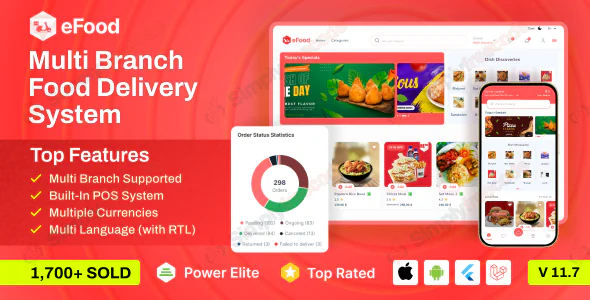
eFood is a complete multi-branch restaurant management and food delivery system for web, Android, and iOS. Restaurant owners, food chains, and delivery operators can run their entire business from a single centralized platform. The system covers everything from product management and branch coordination to customer ordering and last-mile delivery.
Built on Laravel and Flutter, eFood gives you a complete solution that operates across every touchpoint in your business. You get a powerful admin panel, dedicated branch panels, a customer app, a deliveryman app, and a Flutter web app. Buy eFood today and launch your multi-branch food delivery business with everything you need from day one.
Note: For the best testing experience, create a deliveryman credential and a chef credential from the admin panel before exploring the Deliveryman App and Kitchen App.
eFood covers every layer of a food delivery operation with purpose-built tools for each role in your business. Every feature across the admin, branch, customer, and delivery sides works together to keep your operations running smoothly and your customers coming back.
Customers pick their preferred language before logging in to the app. The system supports both left-to-right and right-to-left text directions so you can serve a truly global audience.
Customers access the app and place orders without creating an account. They complete payment and track their delivery in guest mode with no registration required.
Customers log in using their phone number, Google account, Facebook, or Apple ID. Multiple sign-in options make account access fast and frictionless for every user type.
Customers pin their address and label it as Home, Work, or a custom name. The app uses this saved location to find nearby branches and set the delivery destination automatically.
After setting a location, customers see the closest available branches in a ranked list. They can also select a branch directly from a map view when no nearby options appear in the list.
The admin organizes all food items into categories that customers browse from the home screen. Customers find their preferred items and select available variations quickly from within each category.
Customers search by name from the search bar and then filter results by food type, price range, rating, or category. This gives every customer a fast path to exactly the food they want.
The home screen displays promotional banners for special deals, new arrivals, and featured categories. Tapping any banner takes the customer directly to the product or category page it targets.
A quick view panel slides up when a customer taps any food item in the app. From this view, customers adjust quantity, add extras, and drop items into the cart without leaving the current screen.
Customers save any food item to a Favorites list for quick reordering in future sessions. The My Favorites section stores all saved items in one place for convenient repeat access.
Customers add multiple items from different categories into a single cart session. On the cart page, they apply promo codes, adjust quantities, and choose a delivery type before checking out.
Checkout supports Cash on Delivery, Wallet, Online Payment, and Offline Payment options. Online payment connects to multiple popular payment gateways so customers always find a method they trust.
Customers choose to receive their order on the same day they place it or the following day. This option gives customers full control over when their food arrives at their door.
A dedicated coupon section inside the app shows all active discount codes available to customers. Customers apply a code at checkout and the discount calculates automatically from their order total.
A Delivery Note field on the checkout page lets customers add instructions for the driver. Notes like leaving food at the door or skipping the doorbell reach the driver instantly with the order.
After checkout, customers follow every stage of their order in real time from the tracking screen. Each status from order placed to order delivered appears alongside an estimated remaining delivery time.
Customers view all current and past orders from a single account screen. The Running tab shows live orders, and the History tab lets customers reorder previous meals in one tap.
Customers switch between light and dark display themes based on personal preference. Both themes deliver full readability and a clean interface in any lighting condition.
The Wallet section shows the current balance and a complete transaction log. Customers add funds through third-party payment accounts and earn bonus credits for topping up their balance.
Every completed order earns customers loyalty points that they convert into wallet money. The app displays total points earned and a full history of all past point-to-wallet conversions.
Customers receive push notifications about active promotions, discounts, and special offers. The admin creates and sends all outgoing notifications directly from the admin panel at any time.
The built-in QR scanner lets customers scan a branch QR code when visiting in person. After scanning, they access the full menu, build an order, and pay from their own device at the table.
Customers update their name, email, phone number, and password from the profile screen inside the app. All changes save instantly and apply across the customer account on every platform.
A live chat feature connects customers directly with the restaurant admin from inside the app. Customers get fast answers to questions about orders, branches, or menu details through this channel.
Customers contact the admin by phone call directly from the support section of the customer app. This direct line gives every customer a fast path to resolving any service or technical issue.
Customers share a unique referral code through WhatsApp, Messenger, Gmail, or other platforms of their choice. When a referred contact completes their first order, the referring customer earns wallet points as a reward.
The app includes all standard legal content: terms and conditions, return policy, refund policy, cancellation policy, and an About Us page. These pages give customers a transparent view of all business rules and policies before they order.
Branch staff update their branch name, contact email, and phone number from the settings section of the branch panel. They also change their login password from the same settings screen.
Branches switch the language of their panel interface to any language the admin has configured. Working in a native language makes daily order handling faster and reduces mistakes for branch staff.
Branches control product availability and adjust pricing for their specific location from the product list view. They update item names, stock types, and discount types without needing admin access.
A built-in POS system inside the branch panel handles manual orders for takeaway, dine-in, and home delivery. Branches select a payment method at the time of sale and view all past POS orders from one screen.
The order section displays all active online orders sorted by current status for fast processing. Branch staff update payment status, order status, and food preparation time directly from the order list.
Every order in the branch panel includes a print-ready invoice with a full purchase summary. Branches print these invoices on thermal printers and hand them to customers as physical receipts.
Branch staff assign or reassign a deliveryman directly from the order details page. They also update delivery contact information, the scheduled date, and the estimated delivery time from that same screen.
Branch managers track and process dine-in table orders from a dedicated section of the branch panel. They update order status, change payment status, edit food prep time, and print invoices for all table orders.
Branches view their full table list and check real-time availability for each table from the panel. They edit table numbers and seating capacity or remove a table from the system at any time.
Branches create promotional banners for their dine-in table experience from the table section of the panel. They select the banner type, upload an image, and control promotion status directly from the list view.
Branch managers add kitchen chefs for their specific branch from the chef section of the branch panel. They update chef statuses, edit chef details, or remove a chef from their branch roster at any time.
Each branch has a real-time dashboard displaying business analytics, order statistics, earning summaries, and recent order activity. Branch managers use this data to monitor daily performance at a glance without contacting admin.
Admin adds and manages multiple languages across the system by assigning a country code and a display name to each one. They toggle each language on or off and set the system-wide default language from the list.
Admin enters the company name, email, address, country, time zone, and currency from the company settings screen. All system-wide business configurations trace back to this central setup panel.
Admin configures the operating rules that govern how the entire platform behaves for all users. Settings for self-pickup, home delivery, guest checkout, partial payment, OTP verification, and deliveryman self-registration all live here.
Admin flips a toggle to activate maintenance mode and take the public-facing platform offline instantly. The admin and branch panels stay fully accessible during any planned maintenance window.
Admin registers new branches from the admin panel by entering the branch name, address, contact details, credentials, and store location on a map. Each new branch gets its own dedicated panel access immediately after creation.
Admin defines opening and closing hours for the restaurant that apply across all branches. They set day-specific schedules and multiple daily time slots to control exactly when customers can place orders.
Admin chooses between a flat delivery fee model and a distance-based charge model. They configure a minimum fee and a per-kilometer rate so every delivery reflects accurate, fair pricing for customers.
Admin controls the wallet, loyalty point, referral, and fund-adding features from the customer settings section. They set point conversion values, minimum transfer thresholds, and toggle each customer-facing feature on or off independently.
Admin sets the minimum order value, standard food preparation time, and scheduled order slot duration in minutes. These settings shape the checkout experience for every order placed across the platform.
Admin generates a unique QR code for each branch by providing a title, description, hours, phone number, and a menu link. Customers who scan the code land directly on the branch menu page to start ordering.
Admin enables and manages payment options including COD, digital payment, wallet payment, offline payment, and partial payment. Each method activates or deactivates independently from the admin panel at any time.
Admin controls which social login providers appear for customers on the app and web. Google, Facebook, and Apple ID login can each turn on or off from the admin settings panel.
The system sends automatic emails for key actions including order confirmation, password reset, and new deliveryman registration. Admin manages and customizes all outgoing email templates from one centralized section.
Admin creates food categories, sets display priority for each one, and keeps the category list current. They activate, edit, or remove any category from the list to match the current menu structure.
Admin adds new food items to the system and sets attributes, pricing, addons, and product variations from the product management section. Customer product reviews for each item also appear here for admin to monitor.
Admin sets a specific time window for each food item that controls when customers see it as available for purchase. Stock type management for individual products also runs from this availability settings panel.
Admin imports large batches of product data from external sources using a provided template file. Product export runs in two modes: all products at once or filtered by a specific date range.
Admin creates banners linked to specific products or categories and publishes them on customer-facing home pages. Customers who click a banner go directly to the targeted product or category page.
Admin builds discount coupons with custom discount types, minimum and maximum purchase limits, and expiry dates. Customers find these coupons in the coupon section and apply them at checkout to reduce their total.
Admin creates and sends push notifications to the entire customer base from the notification section. Every outgoing notification can be edited, status-toggled, or deleted from the notification management table.
The admin panel includes a full POS system for placing manual orders for takeaway, dine-in, or home delivery. Admin selects the payment method at the point of sale and views all historical POS orders from one screen.
A structured order table lets admin locate orders instantly using status-based filters. Filter options cover pending, confirmed, processing, out for delivery, delivered, returned, and failed to deliver statuses.
Admin views full order data including order ID, payment method, and reference code from the order details screen. From this page, admin updates order status, payment status, delivery timing, and the assigned deliveryman.
Admin manages all dine-in table orders from the admin panel alongside standard delivery orders. They track status, process payments, edit prep times, and print invoices for every table order type.
Admin adds branch-specific chefs from the admin chef section and controls their active status at any time. This feature pairs with the optional eFood Kitchen/Chef App addon for full kitchen management.
Admin adds new deliverymen to the system, views the full deliveryman list, and reads customer ratings for each driver. They accept or reject self-registration requests from new applicants directly from the admin panel.
Admin views all registered customers, checks individual account details, and updates customer activity status as needed. Admin can also remove any customer account from the system when necessary.
Admin registers employees by entering their name, job title, phone number, photo, and account credentials. The employee list displays all staff accounts with options to edit, reassign a role, or delete an employee.
Admin creates named roles and assigns module-level permissions to each one from the role management table. This role-based access system controls exactly what each employee can view and modify inside the panel.
The main admin dashboard presents real-time data across business analytics, order statistics, earning summaries, and recent orders. All key performance indicators for the full restaurant network appear on this single overview screen.
Admin accesses detailed reports covering earnings, orders, deliveryman performance, product sales, and revenue trends. These reports deliver a complete financial and operational picture of the entire multi-branch business at any time.
Admin contacts and assists individual customers directly from the help and support section of the panel. This tool handles customer queries without admin ever needing to leave the admin interface.
Deliverymen choose their preferred language before logging in to the deliveryman app. Working in a native language improves accuracy and reduces daily friction for every driver on the platform.
New applicants register as deliverymen directly from the app by submitting contact details, selecting a branch, and uploading an identity document. Admin reviews and approves each application from the admin panel.
The home tab displays all current delivery assignments immediately after the driver logs in. Each order card shows the current status, the delivery destination, and a link to the full order details.
Deliverymen view a complete log of all past delivery jobs in the order history tab. Each entry shows the order details, the customer name, and the date and time of that delivery.
Tapping any order opens the full details including order ID, scheduled delivery time, food preparation estimate, customer name, and payment status. Drivers use this information to manage each delivery efficiently from pickup to drop-off.
A Direction button on each active order opens the customer location on Google Maps. Deliverymen follow turn-by-turn navigation to reach every drop-off address quickly and accurately.
Deliverymen reach customers by phone call or in-app chat message directly from the active order screen. This communication option keeps every delivery on track even during unexpected situations or access issues.
The deliveryman app supports both a light theme and a dark theme for display. Drivers choose the theme that fits their environment and reduces eye strain during any shift.
The deliveryman app includes terms and conditions and a privacy policy page. These documents give delivery staff clear information about the platform rules and the standards they operate under.
The eFood Flutter web app renders correctly across all screen sizes and device types automatically. Every visitor gets a consistent, well-formatted browsing and ordering experience on desktop, tablet, or mobile.
Web users pin their current address and label it as Home, Work, or any custom name. The system uses this saved location to find nearby branches and pre-fill the delivery destination at checkout.
Customers see a list of nearby branches after they set their location in the web app. They can also pick a branch directly from the map when no branch appears in the proximity list.
Web users log in with a phone number, Google, Facebook, or Apple ID from the sign-in screen. Multiple access options reduce friction at login and make account creation faster for new visitors.
Visitors place full orders and complete payment on the web app without creating an account. Order tracking works in guest mode so every user stays informed after they check out.
Customers select their preferred language from the web app at any point during their visit. Browsing and the full checkout process adapt to the selected language for a native-feeling experience.
The top navigation bar gives customers one-click access to their profile, saved address, order history, available discounts, wallet balance, and loyalty points. Every account tool stays visible and within reach at all times.
Customers type any food name into the search bar to find matching items instantly. They then apply filters for food type, price range, rating, and category to narrow results to their exact preference.
Customers save food items to a Favorites section for fast reordering on future visits. Saved items stay stored in the account and appear in the Favorites tab every time the customer returns.
Customers add multiple food items into the cart from any page on the web app. On the cart screen, they apply promo codes, adjust quantities, and select a delivery option before placing the order.
The web app home page displays promotional banners highlighting active deals, featured categories, and new arrivals. Clicking any banner redirects the customer directly to the relevant product or category page.
Food items on the web app organize into clear categories that customers browse from the home screen. Customers select a category to view all available items, check variations, and place their order in a few taps.
A quick view popup opens when a customer clicks any food item on the web app. Customers adjust quantity, select addons, and add the item to cart from this popup without navigating away from the current page.
A coupon section inside the web app displays all currently active discount codes for customers. Customers apply a code at checkout and the discount deducts automatically from their order total.
Web checkout supports Cash on Delivery, Wallet, Online Payment, and Offline Payment. The online payment path connects to multiple popular payment gateways for flexible, secure payment options.
Customers choose to receive their order on the same day they place it or schedule it for the next day. This flexibility lets customers plan food delivery around their own daily schedule.
Customers monitor their order's progress from placement to delivery directly inside the web app. An estimated delivery countdown updates throughout the journey to keep every customer informed at each stage.
All current and past orders appear in the customer order history section of the web app. The Running tab shows active orders in progress, and the History tab lets customers reorder with one click.
Dine-in customers search for any item using the search bar at the top of the Table app. They also search by category name to navigate the menu and find specific sections quickly.
The Table app includes Veg, Non-Veg, and All filter buttons for instant menu narrowing. Vegetarian customers tap Veg to hide all non-vegetarian options from their view with a single tap.
All menu items in the Table app organize into categories that match the main restaurant menu. Customers browse by category to find their preferred dishes and place orders without any staff assistance.
The cart in the Table app lets customers select their table number and enter the number of diners before checkout. They remove individual items or clear the full cart from the cart screen.
Customers complete payment through cash, card, or other available digital options inside the Table app. This payment flexibility ensures every dine-in customer can pay with the method they prefer.
An optional Pay After Eating choice at checkout lets dine-in customers delay payment until after the meal concludes. This familiar pay-later option creates a more relaxed and traditional dine-in experience for guests.
After a customer confirms their payment method, the app displays an estimated preparation and serving time for their food. The full order summary and the serving time estimate appear together on the post-order confirmation screen.
The Kitchen app organizes all incoming orders into tabs for All, Confirmed, Cooking, and Done. Chefs locate orders for their current task instantly by switching between these cooking-status tabs.
Chefs search for any specific order using the search bar at the top of the Kitchen app. This tool saves significant time in a fast-paced kitchen where scanning through a long order list is not practical.
Tapping any order opens the full details including the order ID, food items to prepare, and special instructions from the customer. Chefs use this screen to cook every order exactly as the customer requested it.
Chefs slide the Start Cooking button to begin work on an order and update its status to Cooking in the system. After finishing, they slide Done Cooking to notify the platform that the order is ready for pickup or delivery.
Each chef views their own profile in the Kitchen app showing their name, branch assignment, email address, and phone number. This profile identifies each chef account clearly in a multi-chef kitchen environment.
The Kitchen app supports both a light and a dark display theme for chefs to choose from. Each chef picks the theme that reduces eye strain during their specific shift and kitchen lighting conditions.
eFood runs on a battle-tested technology foundation that keeps your system secure, performant, and maintainable for years ahead.
eFood distributes exclusively through Envato Market under an official Envato license. You must purchase a valid Envato license before using this product for any commercial deployment. The development team builds all code with security standards as a core priority throughout the entire codebase.
The author holds no responsibility for any damages, data loss, or system failures that arise from using an unauthorized, nulled, or pirated copy of this product. Use only a legitimately purchased version to protect your business and your customers. Review all available live demos and read the full documentation at https://docs.6amtech.com/docs-efood/intro before completing your purchase.
This item is available for free download. You may download and use it according to the free item policy.
DownloadPublished:
09 June, 2026
Version:
v11.7
Category:
Software Version:
High Resolution:
NoFiles Included: